Getting Started
Installing the MailTail Outlook add-in
Last updated 2 August 2026
MailTail is an Outlook add-in for Microsoft 365. You add it once from a single web address, and it runs in Outlook on Windows, Outlook on Mac, and Outlook on the web. There's nothing to install on each machine.
There are two ways to add it. For a company, use the organisation-wide rollout. For a quick test on one mailbox, use the single-user method.
The manifest URL you'll need is:
https://app.mailtail.io/addin.xml
Option A: roll it out for your organisation (recommended)
This deploys MailTail to everyone, or to a chosen group, from the Microsoft 365 admin centre. You need Microsoft 365 administrator rights.
- Sign in to the Microsoft 365 admin centre.
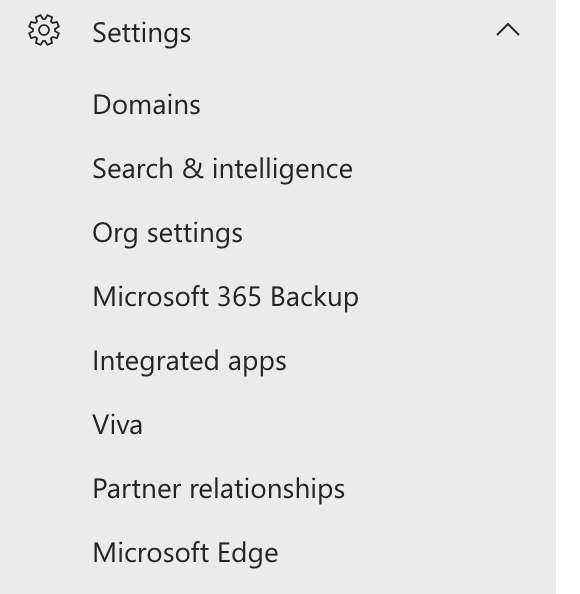
- Go to Settings, then Integrated apps.
- Select Upload custom apps.
- Choose Provide link to manifest file and paste
https://app.mailtail.io/addin.xml. - Choose who gets it: the whole organisation, specific groups, or just yourself to start.
- Accept the permissions and finish the deployment.
After an organisation-wide deployment, Microsoft can take up to 24 hours to show the add-in to everyone, and up to 72 hours for later updates to reach every user. This is Microsoft's timing, not MailTail's. Users usually see it sooner after restarting Outlook.
Option B: add it for a single user (testing)
Any user can add MailTail to their own mailbox without an administrator.
Outlook on the web
- Open outlook.office.com.
- Open any email, select the … (More actions) menu, then Get Add-ins (or Apps).
- Choose My add-ins, then Add a custom add-in, then Add from URL.
- Paste
https://app.mailtail.io/addin.xmland confirm.
Classic Outlook on Windows
- On the Home ribbon, select Get Add-ins (or All Apps, then Add-ins).
- Choose My add-ins, then Add a custom add-in, then Add from URL.
- Paste
https://app.mailtail.io/addin.xmland confirm.
After installing
- Open a new email. MailTail applies your signature automatically if one is assigned to you.
- Open the MailTail button on the ribbon to see your signatures and settings.
- The version number sits at the bottom of the MailTail pane. If you ever need support, that number helps us.
If MailTail doesn't appear after installing, restart Outlook first. If it's still missing after a restart, see The add-in isn't updating or the version looks wrong.
Still stuck? Email support@mailtail.io with your Outlook version and we'll take a look.